
How to move a plumbing shop’s price book in 2026
To move a plumbing price book, copy your current list into one spreadsheet, clean it, check prices against the old book, load it into the new tool, and run both for a set period. Export limits differ by product, and some books can’t be exported, so read your contract before you cancel anything.
We make FlatPriced, which competes with some products named here. It’s in pre-launch and isn’t available yet.

What to copy before you change anything
A price book move starts with one complete copy of your current list, kept untouched as a backup. If you’re not sure what belongs in one, see what a plumbing price book is. For each job, capture:
- Job name and any task code
- Customer description and what’s included
- Hours
- Parts list and parts cost
- Markup and selling price
- Category and subcategory
- Taxable or not
- Add-on price, if you have one
- Warranty wording
An export may not carry all of this, so write down what’s missing as you go. Hours and parts lists are the hardest to rebuild.
Moving a price book off paper
A paper price book has to be typed or scanned, so use the move to drop the jobs you no longer sell. Before anything else, scan or take a picture of every page and keep those as your backup. Then type in only the jobs that show up on your invoices from the last 12 months. That cutoff is our suggestion, so adjust it to your work.
Paper books often hold selling prices with no hours or parts behind them. Work those out from job history, or use the price book build steps. The free price book template gives you a place to keep the list, and the job list comes as a CSV.
Moving a price book out of a spreadsheet
A spreadsheet is the easiest source to move because it’s already in rows and columns, but formulas and hidden columns can break an import. Work on a copy, never the original, and go through these:
- Convert formulas to plain values in the copy, so prices don’t change when a rate cell is lost
- Unhide every column and sheet, then decide what stays
- Pull merged cells apart
- Give each job one row, with one heading row at the top
- Strip dollar signs and commas from number columns
- Save as CSV and open the CSV to confirm it still looks right
Don’t skip that dollar sign step. Jobber’s help article (29 Oct 2026) says a dollar sign in a price column makes the import fail.
What each platform lets you export
Export rules differ by product, and a book supplied by an add-on may not export at all. These come from vendors’ own pages as read on 3 Nov 2026, and those pages change, so check the current version.
| Product | Can you export? | Format and steps | Watch for | Source date |
|---|---|---|---|---|
| Housecall Pro Price Book | Yes | CSV, emailed to the account address | Services and Materials export separately. You need Admin, or Office Staff with the right permission | 2 Jul 2026 |
| Profit Rhino books in Housecall Pro | No | Housecall Pro says you can’t export data from Profit Rhino Price Books | Plan to rebuild what you need | 6 Aug 2026 |
| Jobber Products & Services | Yes | Settings, Products & Services, Export to CSV. File is emailed | Over 1,500 items arrives as several files. Under 50 downloads directly | 29 Oct 2026 |
| ServiceTitan Pricebook | Yes | Pricebook, Import/Export, Export tab. Downloads as XLSX | Filtered by Business Unit. Inactive items only if you tick Include inactive. Admins and managers | 16 Oct 2026 |
| Aptora Flat Rate Plus | Sources conflict | Aptora’s pages disagree on what export comes with which plan | Ask Aptora what your plan includes, in writing | 7 Oct 2026 |
- Profit Rhino inside Housecall Pro. Copy your own job names, job history and prices, and figure the book content stays behind. Ask what happens to items you edited, since the article doesn’t say.
- ServiceTitan Pricebook Pro. The Pricebook Pro help page says nothing about exporting Pro content or access after a subscription ends, so ask before you cancel. Its Excel template article lists Services, Materials, Equipment and Categories tabs, and columns vary by account.
- Any other product. We didn’t confirm export rules for The New Flat Rate or a standalone Profit Rhino subscription, so ask the vendor what you can take.
Paid book content may carry its own license, so check that you’re allowed to reuse it in another tool.
Price book cleanup checklist
A price book cleanup should happen before the import, because every bad row you load has to be fixed twice. Work through this list on your copy:
- Remove duplicates: the same job under two names
- Retire jobs not sold in the last 12 months (our suggested cutoff)
- Use one naming pattern, such as fixture then job
- Merge categories down to a list a tech can scan
- Replace parts costs with figures from a recent supply house statement
- Replace old hours with your own job history
- Recalculate your rate with the plumber labor rate calculator
- Check that markup is applied the same way across jobs
- Confirm which price includes the trip charge and which doesn’t
- Check the taxable setting on every row
- Rewrite descriptions in words a homeowner would understand
- Count your rows and write the number down
If parts costs have moved since the book was last priced, the guide to updating for material costs covers how to reprice.
How to check prices before you go live
A price check compares a sample of jobs in the new book against the old one, so a broken formula shows up before a customer sees it. Pick jobs across your categories, including your biggest ticket.
Here’s the example shop with made-up old prices. The new prices come from its $136 rate, parts at each job’s markup and a $45 trip charge. The fill valve works out like this:
- Labor: 0.75 hours x $136 = $102
- Parts: $18 x 2 = $36
- Trip charge: $45
- Total: $102 + $36 + $45 = $183, rounded to $185
- Difference from the old $165: $185 – $165 = $20, and $20 / $165 = 12.1%
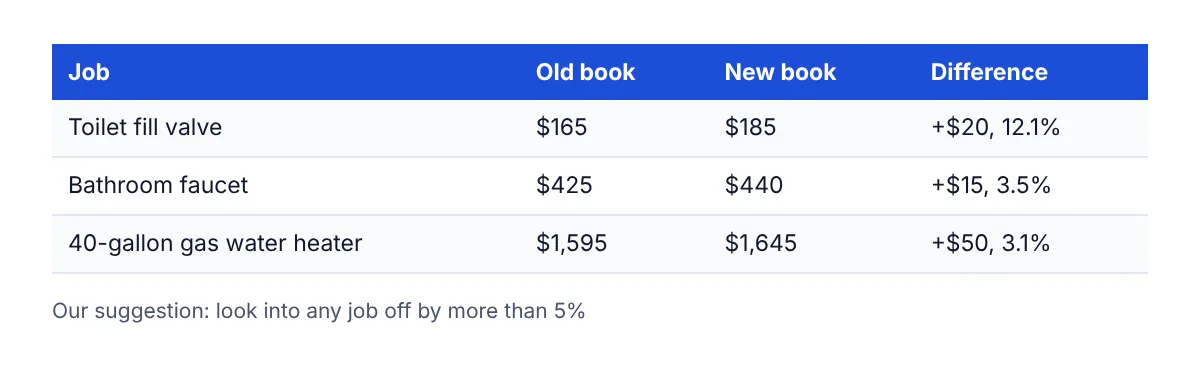
The faucet and water heater are within our suggested 5% limit, so they pass. The fill valve isn’t, so find out why. A changed hour figure, a markup that dropped off in the export or a real rise from new costs would all explain it. If the change is real, keep it. If not, fix the row.
Check the row count too. Say you’ve got 3,200 items in Jobber. That export arrives as at least 3 files, since 3,200 / 1,500 = 2.13. Add the files back up and make sure the total matches the number you wrote down.
Load a small batch first
A test batch of five to ten rows shows whether the file format works before you commit the whole list. Each platform has its own rules, so read the import article for the tool you’re moving to:
- Jobber. The import needs the sample file’s headings, caps each file at 2.5MB and treats a blank Taxable cell as taxable. QuickBooks US users can’t update products through import.
- Housecall Pro. The import takes CSV, TSV and Excel files and matches columns in a wizard. Services need Industry, Category and Name. The MAX plan includes a data import team.
- ServiceTitan. The import updates only the items in your file. ServiceTitan says the Deactivate existing pricebook option effectively deletes your current book and cannot be undone, so don’t check that box unless you mean it.
Run both systems for a set period
Running both systems means the new book handles new quotes while the old one stays available for open jobs. We found no published standard for how long, so we suggest two to four weeks, or long enough for your common jobs to come up. Some rules that keep it clean:
- Pick a start date and tell every tech and the office
- Quote all new work from the new book
- Honor open quotes at the price the customer was given
- Freeze price changes in the old book
- Name one person who can change prices
- Spot-check a few quotes a week against the old book
- List the jobs techs couldn’t find, and add them
Set your finish line ahead of time, such as two full weeks with no missing jobs and no price errors. An extra month of Housecall Pro Essentials on monthly billing is $189, as listed on 3 Nov 2026. Annual plans may already cover the overlap, which the next section helps you check.
Read your contract before you cancel
Your signed agreement decides when you can leave, what you owe and how long your data stays reachable, so read it before you give notice. This table is general information from public pages, and it isn’t legal advice. An order form you signed may say something else.
| Vendor | What the public pages say | Date |
|---|---|---|
| Housecall Pro | Terms: monthly, annual or other terms, and all subscriptions auto-renew. Fees are generally not prorated or refunded. It may keep your data but says it has no obligation to. Help article: cancellation can’t be fully processed until a team member has phoned the account owner | Terms 1 Jul 2026, help 8 Jul 2026 |
| Jobber | Terms: annual billed upfront, cancel at least 30 days before renewal or within 30 days of a renewal notice. Annual billed monthly stays a one-year commitment. Help article: access to your data ends with the paid period | Terms 22 Sep 2026, help 28 Oct 2026 |
| ServiceTitan | SEC filing: agreements are monthly, annual or multi-year and auto-renew, with most auto-renewals running one year | Quarter ended 30 Apr 2026 |
| Aptora | Subscriptions page: no contracts or setup fees, cancel anytime | Seen 3 Nov 2026 |
| The New Flat Rate, Profit Rhino | We didn’t find contract terms on their pricing pages | Seen 3 Nov 2026 |
Work through it in this order:
- Find your signed agreement and any order form.
- Write down the term end date and the notice deadline.
- Export everything you’re allowed to, and open the files to confirm they work.
- Ask the vendor in writing what you’ll be able to reach after you cancel.
- Give notice by the method the agreement names, and keep the confirmation.
- Save the final files somewhere that doesn’t depend on the old account.
Don’t permanently close an account early. Jobber says a closed account is final and its information can no longer be retrieved. And export your customer and job records while you’re at it.
Where FlatPriced fits
FlatPriced is planned to export to CSV, Excel and PDF on every plan, with CSV for Jobber, Housecall Pro and QuickBooks. Version 1 is also planned to import a photo or PDF of an old price sheet, which you’d review before saving. None of this is available yet. The flat rate software page lists what’s planned, the roundup of price book tools covers options you can use today, and the founding list is open.
FAQs
Can I export my price book from Housecall Pro?
Yes. Housecall Pro’s help article, dated 2 Jul 2026, says Services and Materials export separately from the Price Book settings page. Each export is a CSV emailed to the address on your account. You need to be an Admin, or Office Staff with the “Update company account info” permission. Profit Rhino books are the exception, so check which kind you have.
Can I export Profit Rhino price books?
Housecall Pro says you cannot export data from the Profit Rhino Price Books used inside its software, in a help article dated 6 Aug 2026. We didn’t confirm the rule for Profit Rhino on other platforms. Plan to carry over your own job names, hours and prices, and ask Profit Rhino what applies to your subscription before you cancel.
How do I export a ServiceTitan pricebook?
ServiceTitan’s help article says to open Pricebook, choose Import/Export, and use the Export tab. The file downloads as XLSX, filtered by Business Unit, and inactive items appear only if you select Include inactive. Administrators and managers can do this. Its Pricebook Pro help page doesn’t say how Pro content behaves on export or after a subscription ends, so ask ServiceTitan.
Can I export my Jobber products and services?
Yes. Jobber’s help article, updated 29 Oct 2026, says to go to Settings, then Products & Services, and click Export to CSV. The file comes by email, and lists over 1,500 items arrive as several files. Lists under 50 items download directly. Jobber’s terms encourage you to keep your own backups, so export before you change plans.
How long should I run two price books at once?
We found no published standard, so we suggest two to four weeks, or long enough for your common jobs to come up. Quote new work from the new book, honor open quotes from the old one, and freeze changes to the old prices. Stop once you’ve gone a set period with no missing jobs and no price errors.
Should I cancel my old software before I move my prices?
No. Export and test first, because access can end when your paid period does. Jobber says you lose access to account data after that point, and Housecall Pro says it may keep data but has no obligation to. Read your agreement for the term end date and notice deadline, then cancel once the new book has proved itself.
Sources
- Price Book import or export, Housecall Pro, 2 Jul 2026
- Profit Rhino with Housecall Pro, Housecall Pro, 6 Aug 2026
- Housecall Pro pricing, seen 3 Nov 2026
- Housecall Pro terms, last modified 1 Jul 2026 per the page
- Billing and account management, Housecall Pro, 8 Jul 2026
- Products & Services List, Jobber, updated 29 Oct 2026
- Jobber terms of service, 22 Sep 2026
- Cancel your Jobber subscription, 28 Oct 2026
- How do I permanently close my account, Jobber, 29 Oct 2026
- Import and export your pricebook, Pricebook Excel template and Pricebook Pro Home, ServiceTitan, updated 16 Oct 2026
- ServiceTitan Form 10-Q, quarter ended 30 Apr 2026
- Flat Rate Plus features list, Aptora, modified 7 Oct 2026
- Subscriptions, Aptora, seen 3 Nov 2026